-
Log in via this link.
-
Yale University members should log in via the Single Sign-On link (SSO).
-
Sign in with your Yale Net ID and password.
-
Click “Positions” under “Faculty Search” on the left toolbar.
-
Select + New Position on the upper right.
-
Select position “Type”.
-
Select your “Unit” (i.e. History, Neurosurgery) and then click the “Create” button.
-
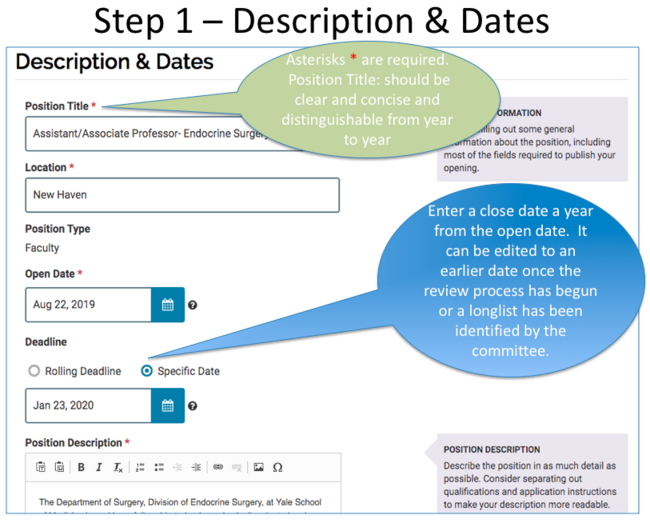
Fields that have a red asterisk * indicate required fields.
Description & Dates
-
The title should be clear, meaningful, and distinguishable (for example, if the position is within a specialty, then it may be helpful to note this in the title).
-
“Specific Date” should be chosen for the deadline and should be one year out from the open date. This date can be edited to an earlier date if the candidate is identified sooner. Please note, the deadline date is a hard stop and no one will be able to apply after this date.
-
Although the “Qualifications” and “Application Instructions” fields are not required, they are recommended as they can help applicants easily identify aspects about the position.
-
Examples for “Qualifications” might be: Ph.D. required by date of hire, must have xxxx certification, etc.
-
Examples for “Application Instructions” might be: please provide C.V., cover letter, research statement, three letters of recommendations; review of applications will be begin on Month/Day/Year, etc.
Required Documents
It is necessary to add requirements for each position so applicants can upload the appropriate materials requested. Please note, all requirements will need to be fulfilled in order for applicants to submit their application.
-
Select the “Document Type” (e.g. C.V., Cover Letter, Research Statement and Confidential Letter of Recommendation or Evaluation, etc).
-
Enter the “Number Required”. Please note, the “Number Required” will dictate how many documents will need to be uploaded for this requirement to be fulfilled.
-
For example, if you are requesting a list of names of reference, not letters of recommendation, the “Document Type” that should be selected is “Contact Reference” and the “Number Required” should be 1.
-
-
Enter a “Requirement Note” if helpful. For example, “Please upload a document listing three names and their contact information.”
Evaluation Settings
This is not a requirement, but can be made available for search committee members to use if desired.
-
If you choose to use this functionality, please be concise and relevant to a topic that is meaningful for committee members (e.g. Scholarship, Teaching, and Research).
-
“Blind Review” is recommended so evaluators can comment and rate freely.
Application Forms
Please bypass this step.
Search Committee
Members of the search committee are added for access to the position. If the committee is not known or only partially known, you can return back to this step to add or adjust members as needed. Currently, individuals added as search committee members will see all documents of an applicant’s record. Therefore, individuals that are not part of the eligible voting faculty group should not be added to this list.
- For assistance on adding a committee member, click here.
- For assistance on evaluating applications, click here.
-
If someone cannot be found, contact faculty.admin@yale.edu for assistance.
Position Notes
This section is private, only viewable by unit administrators and is not seen by applicants.
Please contact the Office of the Provost or the relevant Dean’s Office for guidance on what should be included in this section.
Submit Position for Approval
Once all information is completed, please submit the position for approval. The position will route accordingly based on your school or department.
Final Edits to Open Position
Once the position is approved you will be notified via email and can then make your final edits.
Position Status
-
Click on “Position Actions”, upper right corner.
-
Select, “Edit Position”.
-
Ensure “Open Date” is set appropriately.
-
Ensure “Deadline” is set by selecting “Specific Date”, which should be no more than one year out from the date the position opens. Note: applicants will not be able to apply once the “Deadline” has passed.
-
Under “Position Advertising” be sure the “Apply Now” page is “Published”.
-
Under “Position Status” set the status for your position to “Accepting Applications”.
-
The position status should be adjusted as the search progresses. This can be done from the drop down change menu or via the “Edit Position” feature. Using “Edit Position” will allow you to modify the status properties.
-
When it is time for the committee members to review applications, set the “Position Status” (via the “Edit Position”, under the “Position Actions” upper right) to “Reviewing Applications” and be sure the third attribute, of this status, is set such that, Evaluators can review applications to this position. If not, click “Change” to edit and adjust accordingly.
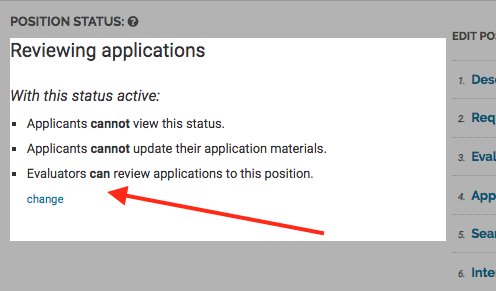
If the search committee members wish to see applications during the “Accepting Applications” stage, be sure the third property is set so Evaluators can review applications. Also, be aware that applicants have the ability to update their application until the position moves to the status of “Reviewing Applications”.
-
-
You can always check to see if your position is active by viewing Academic Job Listings.
Obtaining the Position URL
- The URL is important and should be included on advertisements as it allows applicants to apply via the Interfolio platform.
- There are two ways to obtain the position URL:
-
Click “Edit Position” under “Position Actions”, upper right of page. You can find the URL under the “Position Status” section of the page (https:/ /apply.interfolio.com/xxxxx).
-
Click “View Position Details” under “Position Actions”, upper right of page. You will see the URL under “Position URL”.